JOBS
How to Book a Service with Priced Services
Created 12/25
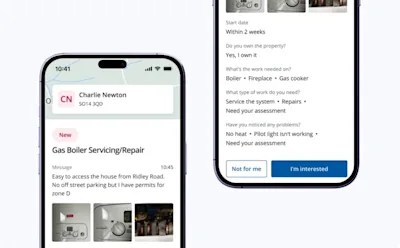
If you know what job you need doing and want a faster way to book — with a clear price upfront — Priced Services make it simple. This guide walks you through how to find, book, confirm, and manage a priced service from start to finish.
Note: Not every job can be booked as a Priced Service. Availability depends on your postcode and the type of work needed.

What Is a Priced Service?
A Priced Service lets you book certain jobs quickly with a fixed, upfront price. Instead of waiting for quotes, you choose a service, pick a date, and confirm your booking — all in one flow.
There's also a demo available to watch here to see how it works.
Booking a Job
Getting started only takes a few steps.
Head to the app or website
Open the Checkatrade app or go to checkatrade.com in your browser.
Use the search bar
Type in what you need help with — from plumber to loft conversion.
Pick the right match
Choose from the suggested services that appear as you type.
Add your postcode
This helps us show trades who work in your area.
Tap search
You’ll see a list of local trades, each with their own profile.
Look out for Priced Services
These are clearly marked in search results and on tradespeople’s profiles.
When you find one you like, select Request service to get started.
Choose a start date
Pick when you’d like the job to begin — whether that’s ASAP or later.
Soon, you’ll also be able to tell the tradesperson if you’re flexible with timing.
Share your contact details
We’ll use these to keep you updated.
Submit the booking
You can track everything in Manage your job and chat with the tradesperson if they need more information.
Confirming Your Booking
When it’s time to lock things in, we’ll give you a nudge by email and in the app (if installed).
You can confirm your booking:
Directly in the chat, or
Through the job tracker
Before confirming, you’ll see:
The full job price
Payment milestones, so you know exactly when money will leave your account
When you’re ready, add your card details (or use a saved card) to confirm.
💬 Top tip: You can message your tradesperson at any point if you have questions.
Scheduling the Work
Once confirmed, your tradesperson will suggest some dates.
Pick a date that works for you and select Confirm.
Want it in your calendar? Tap the three dots and choose iPhone, Google, Outlook, or another calendar.
If the suggested times don’t work, select Request different times and suggest an alternative.
Cancelling a Job
Changed your mind before confirming?
Tap the three dots next to the job
Select Close the job and tell us why
We’ll let the tradesperson know.
Already booked in?
Check our Cancellation Guide to see what happens next.
Heads up: A cancellation fee may apply depending on how close the job is to starting. See our Cancellation Policy for full details.
When the Job’s Done
Once the work is marked complete, you’ll get a notification. You then have 48 hours to let us know how it went.
Happy? We’ll process the payment.
Got a concern? Select I have an issue and tell us what’s wrong. You can learn more about our Checkatrade Guarantee if needed.
Once everything’s sorted, just tap Resolved.
Still need support?
* Calls charged at local rate for BT customers, other service providers may charge more.